
Before we begin
If you haven’t already done so, go ahead and clone the repository, then open the folder 004-points-of-view-start in your terminal.
I highly recommend updating your editor settings for this one, so we don’t have to remember to fix unused variables ourselves.
Here’s how to set things up in your VS Code settings.json file:
Understanding spaces
You’ll hear the word space used a lot today and in future articles, often with another word in front of it, such as model space or screen space.
A space is a coordinate system that we measure positions in.
Most spaces are made from two things:
- An origin: the place we measure from, also known as the zero point.
- A basis: the set of axes telling us which directions the numbers go in, and how long one unit is on each axis.
Screen space, for example, has its origin at the top-left corner and a basis of one pixel right and one pixel down.
Almost every space is attached to something, and when that thing moves, the space moves with it.
Commonly used spaces in 3D graphics
| Space | Origin | Attached to |
|---|---|---|
| screen space | The top-left corner. Measured in pixels. | An application window. |
| NDC | The center of the window. Measured edge to edge from -1 to 1 on both axes. | An application window. |
| clip space | The center of the camera’s view, before the perspective divide. | A camera’s projection. |
| view space | The position we are looking from. | A camera. |
| world space | The center of the scene within our game or application. | Nothing. It is the space that all other spaces and objects are placed within. |
| model space | A point on the object, usually its center, determined when the geometry was created. | An object’s geometry. |
Today we’ll be focusing on screen space and view space, with NDC (Normalized Device Coordinates) as the step in between.
Our camera sits at the center of the world, looking down the negative Z-axis, so for now view space and world space are exactly the same thing. They’ll only split apart once we create a Camera struct with position and rotation values we can move around. We’ll cover this in a future article. For now, think of our “camera” as being stuck at the world’s origin.
If you run the project via zig build run, you’ll see a small black square in the center of the screen. I’ve repurposed the Square struct from the last article and have renamed it to Point.
We’ll use this new struct to learn how to think about view space, and how to project positions into screen space with the help of NDC. Then we’ll add a second point and move them both around in three dimensions.
Screen space
In the last article, we saw that a window’s origin (0, 0) is at the top-left corner, where x increases to the right and y increases downwards. Older screen technology worked by drawing one row of pixels at a time, starting at the top-left corner, so memory was laid out the same way. The convention stuck, and today we call it screen space.
Screen space coordinates are continuous rather than fixed to whole pixel values. (0, 0) is the top-left corner of the first pixel, not the center. Its center is (0.5, 0.5).
The problem with positioning using pixels
Our point is currently at the center of the screen, at half the window’s width and height (640, 360).
Change the window size to 800×600 and rebuild. You’ll see that the point is no longer in the center.
We need to be able to describe a point’s position the same way for any window size. We can do that using Normalized Device Coordinates.
Normalized Device Coordinates
You might be thinking we could describe positions as a fraction of the window, so that “halfway across” always means the center. Well, that’s basically what Normalized Device Coordinates are.
NDC uses a fixed range of values from -1 to 1 on both axes, with its origin (0, 0) at the center of the window. This is the format GPUs actually work with. When you provide pixel coordinates to SDL, it converts them to NDC before handing them over to the GPU.
Instead of writing different code for different resolutions, we describe our point in NDC and convert it to pixels for whatever size the window is. Our point goes in the center of any window with (0, 0), or in the top-right corner with (1, 1). No more calculating widths and heights by hand.
(1, 1)is the window’s top-right corner.Remember that since coordinates are continuous, this is the outer edge of the last pixel, and a point placed there will be partly cut off, with most of it falling outside the window.
The viewport transform
Converting positions from one space to another is called a transform, and this particular one, from NDC to screen space, is known as the viewport transform.
Let’s add this function to our Point struct:
/// Convert a point from Normalized Device Coordinates to Screen Space Coordinates (pixels).
/// This is known as the viewport transform.
pub fn toScreenSpace(self: Point, width: f32, height: f32) Point {
    return .{
        .x = (self.x + 1) / 2 * width,
        // We have to flip the sign for the Y-axis, since NDCs have +Y up, whereas Screen Space Coordinates have +Y down.
        .y = (1 - self.y) / 2 * height,
        .size = self.size,
    };
}
Now replace the renderFillRect line with this:
try renderer.renderFillRect(point.toScreenSpace(window_width, window_height).toRect());
Run the app…
Where’s our point gone?
That’s right, our point is still at (640, 360), which is way outside NDC’s range. Let’s give it a position between -1 and 1 instead:
const point = Point{
    .x = -0.5,
    .y = 0.5,
    .size = 20,
};
Rebuild the app…
Now it appears in the center of the top-left quarter of the window.
Let’s change our window back to 1280×720…
It still appears in the center of the top-left quarter, awesome!
Drawing from the center
Try changing the position to the origin (0, 0) to center it.
Then try setting it to the top-right corner (1, 1)…
There’s no point?
Well, remember that our rectangle is drawn from its own top-left corner, so we need to subtract half the width and height from our coordinates in the toRect function. This way it’ll be drawn around its center point instead:
pub fn toRect(self: Point) sdl3.rect.FRect {
    const half_size = self.size / 2;

    return .{
        .x = self.x - half_size,
        .y = self.y - half_size,
        .w = self.size,
        .h = self.size,
    };
}
Rebuild the app to see the bottom-left quarter of our point appear at the top-right corner of the window.
Now that we have a two-dimensional point rendering on the screen, how do we make it appear in 3D?
The perspective divide
For 3D objects to appear correctly on a 2D screen (where things that are far away look smaller), we need to use a formula known as the perspective divide.
X = \frac{x}{-z} \qquad\qquad Y = \frac{y}{-z}
It works by dividing a position’s x and y values by how far away it is (-z). This means that the further something is from the viewpoint, the closer it gets pulled towards the center of the screen.
Vectors
To be able to use this formula, our 2D point needs to be upgraded into a 3D point. We could do this by adding z: f32, to the Point struct. However, we’ll be using these three properties x, y, and z all the time when working in 3D, and we’ll eventually write a lot of functions to work with this data that don’t have anything to do with Point. So let’s learn a new concept called vectors.
A vector in 3D graphics is a bunch of numbers, usually holding a position, a direction, or an offset.
Create a new file called math.zig, where we’ll write our own Vec3 struct. Vec3 is the common name for a vector that stores 3 values, typically x, y, and z.
I’ve added an init function to make long lists of points easier to read.
pub const Vec3 = struct {
    x: f32,
    y: f32,
    z: f32,

    pub fn init(x: f32, y: f32, z: f32) Vec3 {
        return .{ .x = x, .y = y, .z = z };
    }
};
Then we need to update Point so it uses a Vec3 instead of separate x and y fields.
// Add these imports to the top of the file:
const math = @import("math.zig");
const Vec3 = math.Vec3;

// Replace the x and y fields with:
position: Vec3,
Be sure to update the toRect and toScreenSpace functions, and main.zig, so that the build passes:
// main.zig

const point = Point{
    .position = .{ .x = 1, .y = 1, .z = 0 },
    .size = 20,
};
// point.zig

pub fn toScreenSpace(self: Point, width: f32, height: f32) Point {
    return .{
        .position = .{
                .x = (self.position.x + 1) / 2 * width,
                // We have to flip the sign for the Y-axis, since NDCs have +Y up, whereas Screen Space Coordinates have +Y down.
                .y = (1 - self.position.y) / 2 * height,
                .z = self.position.z,
        },
        .size = self.size,
    };
}
Next, add a new function below toScreenSpace:
/// Convert a point from view space to Normalized Device Coordinates.
/// This is known as the perspective divide.
pub fn toNDC(self: Point) Point {
    return .{
        .position = .{
                // We divide by -Z because the camera looks towards -Z, so everything visible has a negative Z value.
                .x = self.position.x / -self.position.z,
                .y = self.position.y / -self.position.z,
                .z = self.position.z,
        },
        .size = self.size,
    };
}
Now our point can exist in 3D space rather than just screen space.
Into the third dimension
Center our point in main.zig with .x = 0, .y = 0, .z = 0, and update the renderFillRect line again:
try renderer.renderFillRect(point.toNDC().toScreenSpace(window_width, window_height).toRect());
Run the app…
Where’s our point now?
Well, we’ve placed it at 0 on the Z-axis, which is exactly where our camera is. You can’t see something that’s sitting right on the lens!
Dividing by zero doesn’t give us a valid position, so there’s nothing to draw. Let’s move the point in front of the camera by setting z to -1.
Run the app… there it is!
From here on, let’s say that a unit is one meter. The GPU doesn’t care what our units mean, but picking one makes things easier to talk about. Our point is now 1 meter in front of the camera.
We’ll keep
zvalues negative for now. Points with a positivezvalue are behind the camera, and we’ll deal with what happens to them (clip space) in a later article.
Try moving the point 8 meters away by setting z to -8 and rebuild… Why does the point look exactly the same as before?
Well, renderFillRect works in pixels, so our point is always drawn at 20px by 20px. That’s expected since we’ve only taught the point to change position as it moves further away from us, but not size. We’ll fix this up in the next article.
Checking the math
So, how can we be sure this is a 3D point if it still looks the same at different distances?
Let’s bring the point back to .z = -1 and move it half a meter to the right with .x = 0.5. It appears exactly at the center of the right half of the screen, just like a 2D point would. Hmmm, this doesn’t feel very 3D. Let’s take a quick look at the math:
toNDC
- Start with the perspective divide formula:
X = \frac{x}{-z} - Substitute
x = 0.5andz = -1:X = \frac{0.5}{-(-1)} - Simplify:
X = \frac{0.5}{1} = 0.5
toScreenSpace
- Start with the viewport transform formula:
X = \frac{x + 1}{2} \times \text{width} - Substitute
x = 0.5andwidth = 1280:X = \frac{0.5 + 1}{2} \times 1280 - Simplify:
X = \frac{1.5}{2} \times 1280 = 0.75 \times 1280 - Result:
X = 960
960px is exactly the center of the right half of a 1280px-wide window (640px to 1280px), which lines up with the point appearing at the center of the right half of the screen.
Because our point is exactly 1 meter away, dividing by 1 changes nothing, so it behaves just like a 2D point.
To see its behavior change, let’s move the point back to .z = -2 and rebuild, and then to 8 meters away .z = -8.
The point moves closer to the center of the window. The further away something is, the smaller it looks. Our point is always drawn at 20 pixels, so for now, the only thing that shrinks is its distance from the center.
Making more points
The shrinking distances will become more noticeable as we add more points. First, let’s replace our point definition, then import Vec3, and render from an array of vectors instead. We’ll turn each one into a Point when we draw it:
var points = [_]Vec3{
    .init(0.5, 0, -8),
    .init(-0.5, 0, -8),
};
Replace the renderFillRect call with this code:
for (&points) |position| {
    const point = Point{ .position = position, .size = 20 };
    try renderer.renderFillRect(point.toNDC().toScreenSpace(window_width, window_height).toRect());
}
Rebuild and you’ll see two points side by side in the middle of your window.
Adding some controls
So that we don’t have to keep changing the z position of our points and rebuilding every time, let’s create some controls to move the points closer to and further away from the camera.
Add distance and movement_speed below our points array:
var distance: f32 = 8;
const movement_speed: f32 = 4;
Then add these lines above the draw code in the render loop:
// Update
const keys = sdl3.keyboard.getState();
const previous_distance = distance;

if (keys[@intFromEnum(sdl3.Scancode.w)]) {
    distance -= movement_speed * delta_seconds;
} else if (keys[@intFromEnum(sdl3.Scancode.s)]) {
    distance += movement_speed * delta_seconds;
}

// We're clamping the distance so we don't move too close or too far away.
distance = @min(8, @max(1, distance));
const change = previous_distance - distance;

for (&points) |*point| {
    point.z += change;
}
Rather than waiting for key events from the operating system, we can check which keys are held down every frame. This keeps movement smooth, instead of jittering along with the operating system’s “key repeat” events.
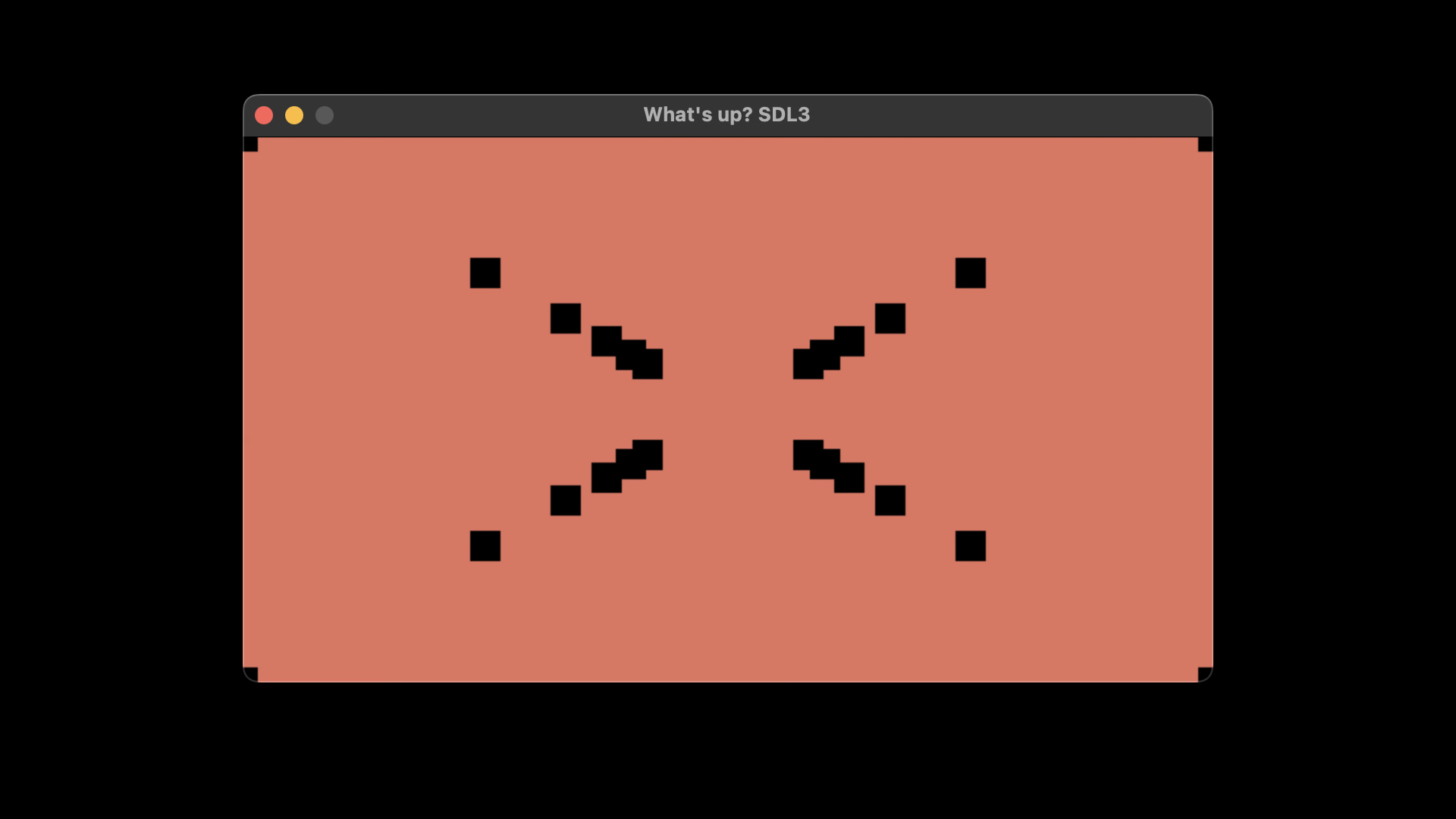
Run the app, then hold W, followed by S, to move the points back and forth. They look like they’re spreading apart and drawing together, but they’re actually moving closer to and further away from the camera.
If you’re still not convinced, give this a try 😉
var points = [_]Vec3{
    .init(1, 1, -8),
    .init(1, 1, -9),
    .init(1, 1, -10),
    .init(1, 1, -11),
    .init(1, 1, -12),
    .init(1, 1, -13),
    .init(1, -1, -8),
    .init(1, -1, -9),
    .init(1, -1, -10),
    .init(1, -1, -11),
    .init(1, -1, -12),
    .init(1, -1, -13),
    .init(-1, 1, -8),
    .init(-1, 1, -9),
    .init(-1, 1, -10),
    .init(-1, 1, -11),
    .init(-1, 1, -12),
    .init(-1, 1, -13),
    .init(-1, -1, -8),
    .init(-1, -1, -9),
    .init(-1, -1, -10),
    .init(-1, -1, -11),
    .init(-1, -1, -12),
    .init(-1, -1, -13),
};
Hold W and fly onward through a glorious tunnel of points!
Dividing by -z makes distant points bunch up towards the center of the screen, which is how perspective creates a sense of depth.
In the next article, we’ll connect points together in 3D space and end up with a spinning cube.
All code for this series can be found in the repository.